Manage products
You will see all products grouped by category. At a glance, you can see the available stock (if active), the price, and the number of active hostings for each product.
Categories
Please refer to the Categories page for managing product categories.
Create product
You can create products with minimal properties. After creation, you will be automatically redirected to the editing view, where you can fully configure the product.
After creation, the product is stored invisibly, so you can configure it completely without pressure.
Edit product
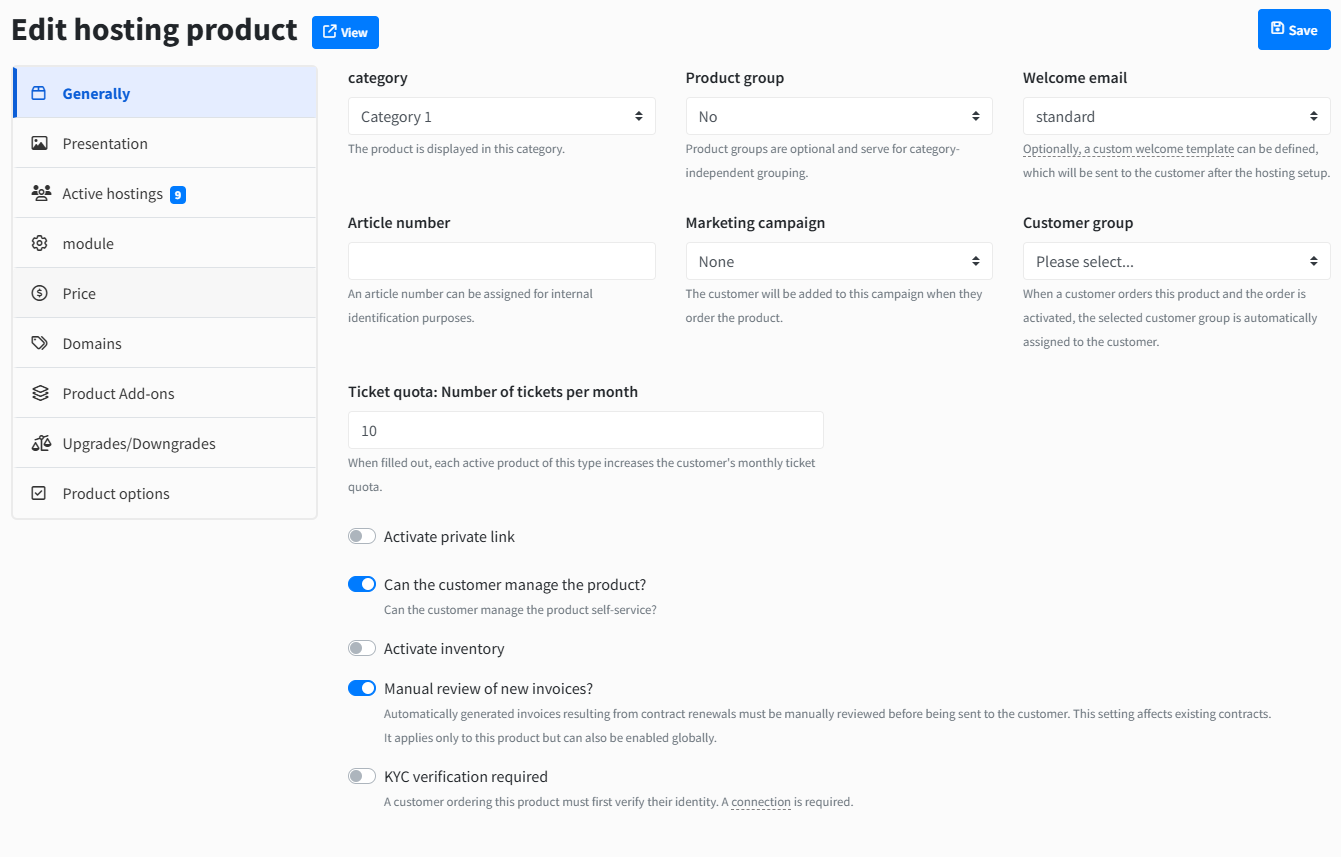
General
Assign the product to a category, product group (optional), customer group (optional) and set other general product settings
Presentation
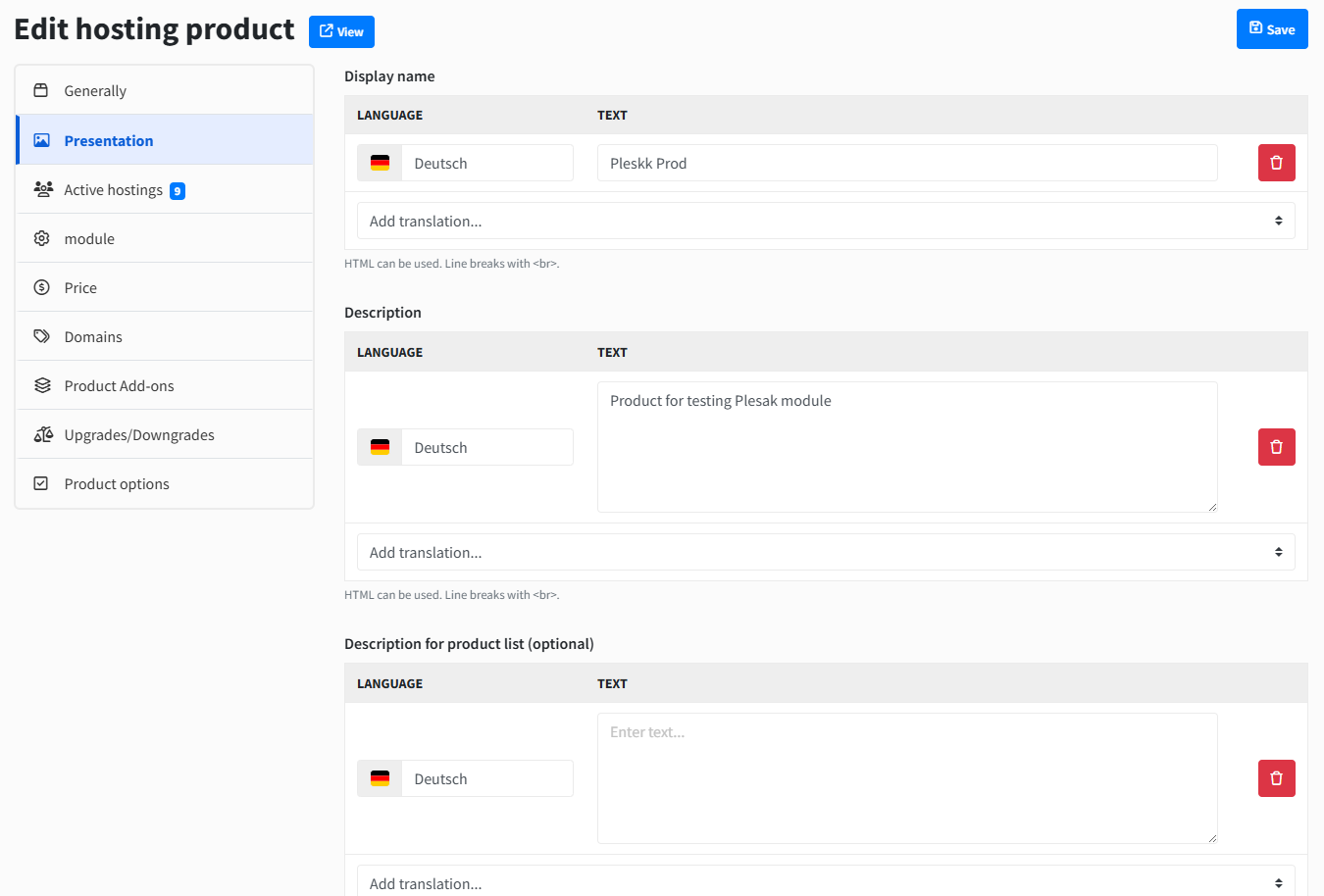
Set presentation related attributes to product like:
Display name
Description
CMS Site (optional)
Image (optional)
Product secret link
Secret link is used in the case when you want a product not to be ordered by anyone, but just by the customers you share the secret link with. This link will add the product to the cart and redirect the customer to the reconfigure product page. You can generate the secret link by simply activating it at the product general settings:

The link will be generated after you save the settings. If you disable that checkbox and save, than the link will be deleted.
Active hostings
You can see all active hostings that belong to this product.
Module
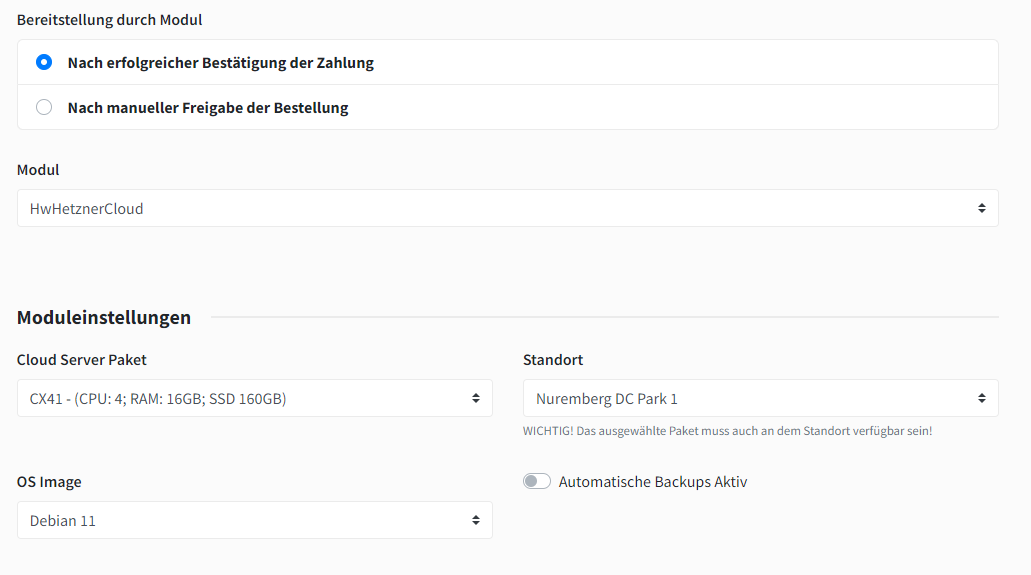
Configure automatic provisioning of the product through module integration. Choose whether the product should be provisioned either fully automatically or manually by an administrator after payment has been received.
Select the desired module with which the product is to be provided. You will then find the possible configuration properties that you need to fill in.
Here you can also set which module pages and actions you want to be inaccessible in this product. This can be useful when you want to give diferent access to the product, based on the price.
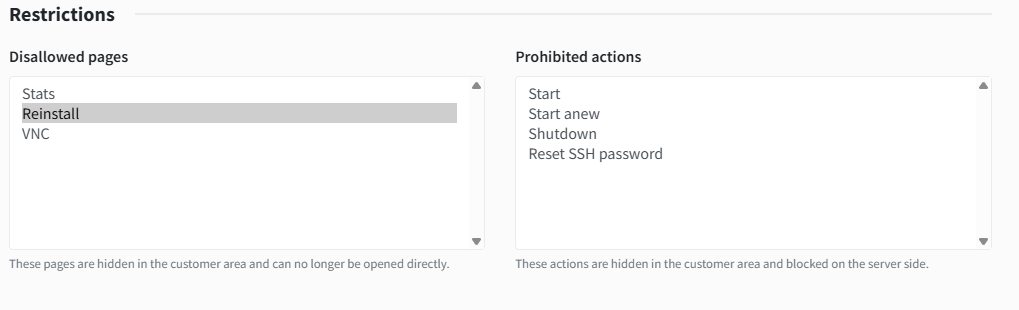
If the customer tries to access a prohibited page or action, he just gets redirected back to the product overview page, and gets a notification that he is not allowed to go there.
Price
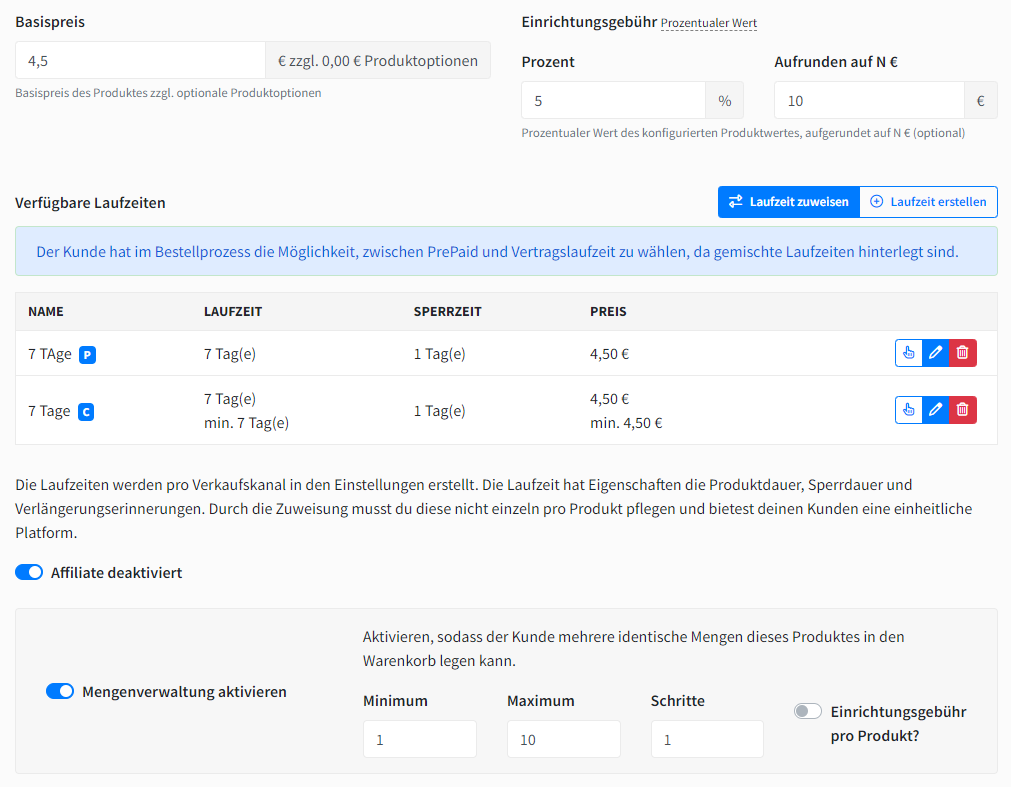
Base price
Base prices are recurring prices and are multiplied with the selected payment period.
Setup price
A setup fee / NRC (non recurring cost) can also be applied to a product and must be paid only once during order process. For the setup fee, you can either enter a fixed amount or configure a percentage value rounded up to N €.
Now assign the already created terms to your product. The terms use the base price as a multiplier and thus create uniform prices for all your products.
Example: Base price 100 € 7 days, multiplier "0,25" = 25 € 1 month, multiplier "1" = 100 € 3 months, multiplier "3" = 300 € 12 months, multiplier "12" = 1200 €
Per-interval setup fee
You can set a different setup fee for each payment interval, so a longer prepayment can carry a lower setup fee. Only the setup fee is affected; the recurring price still comes from the base price and the interval multiplier.
In Hosting → Products → <product> → Prices, each row in the "Available payment intervals" table has an "Alternative setup fee" column. The fields appear once the interval is activated.
Leave the field empty to use the product's setup fee.
Enter 0 to charge no setup fee for that interval.
Enter any amount to replace the product's setup fee for that interval.
The placeholder shows the product's setup fee, so you can see what an empty field falls back to. You can change or clear the value at any time; clearing it immediately restores the product's setup fee. The value must be a number greater than or equal to 0, and an invalid entry cancels saving the whole product while leaving the intervals unchanged. When you duplicate a product, the per-interval amounts are copied along.
The per-interval amount overrides the product's setup fee, a location-based setup fee, and the percentage setup mode. It does not apply when the same interval's setup fee is set to "Free (Product)" or "Free (Product & Options)", or when a "Free setup" promotion is active — in those cases the customer pays nothing and the amount stays visible as a struck-through original price. Whether the setup fee is multiplied by quantity is still decided by the "Setup fee per product?" switch.
In the storefront, the payment-interval selection tiles show a "Setup: +X €" line per interval, which now displays the amount valid for that interval. The summary on the right calculates the same fee and carries it into the cart, order, and invoice.
Quantity
You can optionally activate quantity management for this product. In this case, the customer has the option of ordering the product multiple times with the same configuration. You can also specify whether the setup fee should apply per quantity or only once for the order.
Up-/Downgrades
If this product defines a fixed product, you can use it to define upgrades and downgrades for fixed products. To do this, select the products that can be displayed for selection. Depending on the product type, downgrades are usually not technically possible.
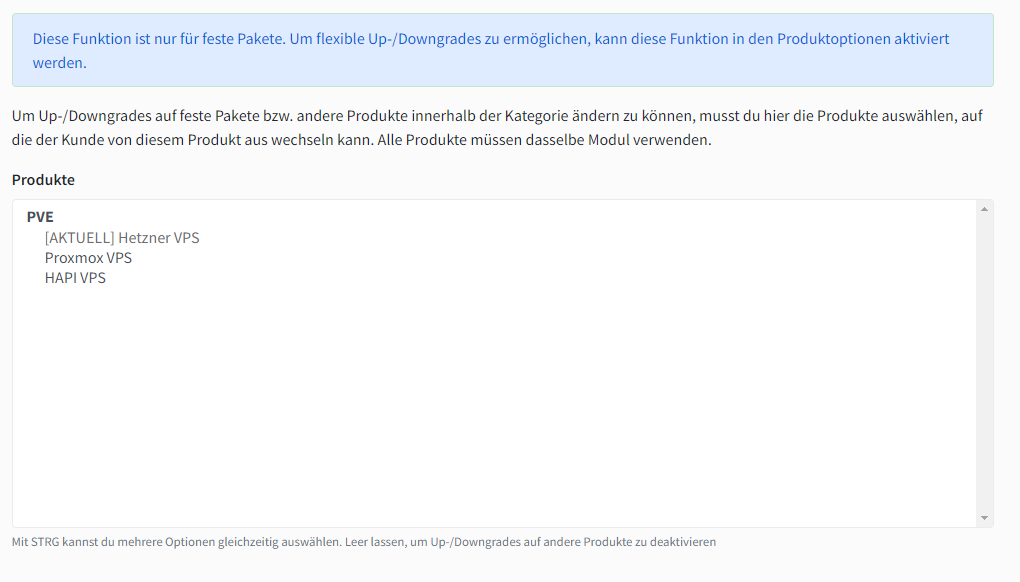
Once active, the customer can select the chosen upgrades/downgrades in the customer portal. The change is calculated based on the price change. If there is no price change, the upgrade/downgrade will not be initiated.
Produktoptionen
Select the product options that can be configured during the ordering process. Also define whether upgrades/downgrades of the options should be possible.
You can find the documentation for maintaining product options here.