
Newsletter
You can conveniently send newsletters to selected customers through the administration.
Path: Contents -> Newsletter
Editing a newsletter
Send immediately
Open the newsletter in edit mode. Click Start sending in the header to send the newsletter immediately. Sending runs in the background in regular intervals and batches to avoid spam.
Send a newsletter later
You can send a newsletter at a later time:
Open the newsletter in edit mode.
Click the Sending options dropdown next to the "Start sending" button.
Select Schedule sending.
Choose the desired sending time (date and time).
You must save the newsletter before scheduling.
Confirm the schedule.
After scheduling, Hostware shows the notice: "This newsletter is scheduled for automatic sending on [date]."
The newsletter is sent automatically at the chosen time.
The sending time must be in the future. Otherwise Hostware shows an error message.
Send a test email
Before the actual sending, you can send a test email to yourself to check the appearance. Click Send test email on the right side.
Define recipients
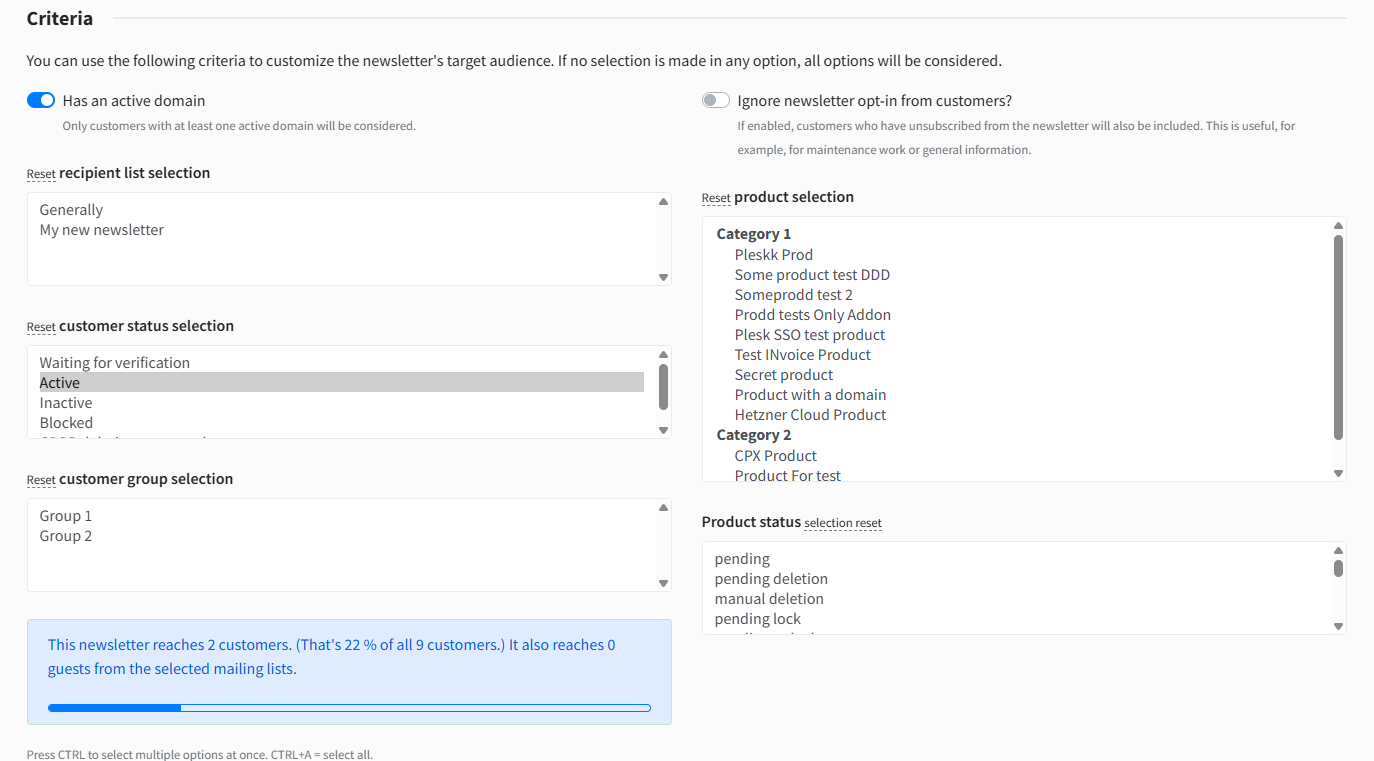
While the newsletter is in the DRAFT status, you can set the target group criteria. Only customers and guests who meet these criteria receive the newsletter.
File attachments
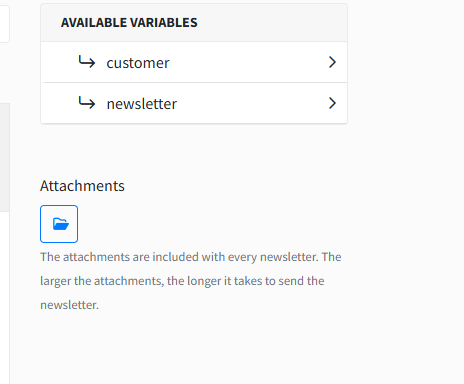
Next to the newsletter content on the right, you can attach multiple files that are sent to the customers together with the newsletter.
After sending
Once the newsletter has been sent, no more changes can be made to the content. The sending process runs in the background and sends the emails in regular intervals and batches to avoid spam.
Hostware shows the number of recipients and the open rate.

Newsletter signup in the storefront
The Receive newsletter? checkbox is the general newsletter signup. It is displayed independently of the individual newsletter lists and appears because the general newsletter signup is enabled.
If you only want to offer the individual newsletter lists, disable the general signup:
Go to Administration -> Settings -> General Settings.
Switch to the Registration tab.
Uncheck "Registration: Enable newsletter checkbox by default?".
The selection of the individual lists remains independent and continues to be controlled via the respective list settings. For information on how customers select individual lists during registration, see Recipient lists.