
Customer groups
Customer groups give selected customers their own discounts, domain price list or collective invoice, and highlight them in color throughout the administration. A customer can belong to several groups at once.
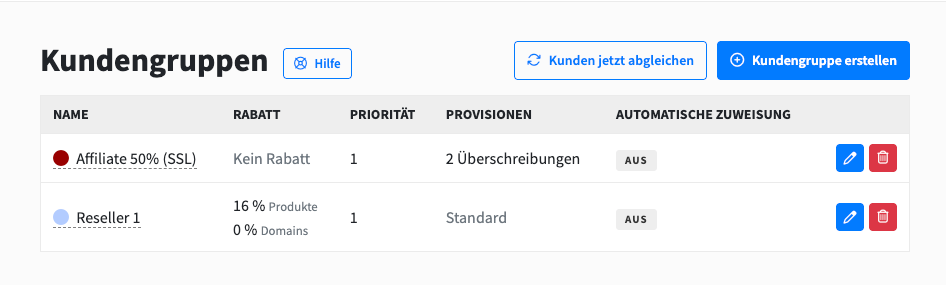
Create a customer group
Create groups under Settings > Customer groups (Einstellungen > Kundengruppen). Each group has these settings:
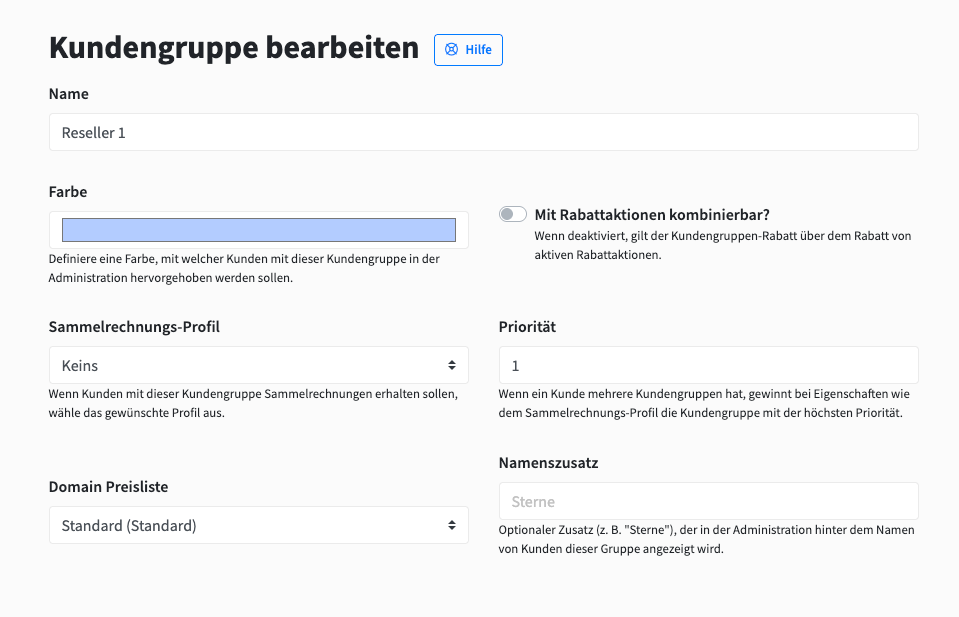
Color: highlights the names of the group's customers in admin lists such as orders, invoices and tickets. Customers in several groups get a blend of all group colors.
Collective invoice profile: customers of the group receive collective invoices with this profile.
Priority: decides which group wins when a customer is in several groups. The higher number wins for the collective invoice profile, the domain price list and the name suffix.
Domain price list: the price list the group's customers see. A price list set directly on a customer takes precedence.
Name suffix: a short label such as "Stars" shown next to the customer's name. It is only visible in the administration.
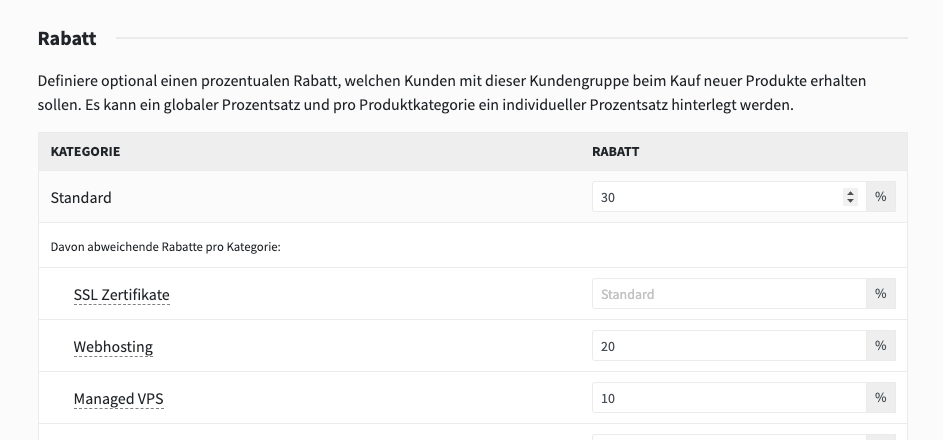
Discounts: a percentage for new products, optionally different per product category, plus a separate percentage for domains.
Affiliate commissions: different commissions per product or category when a customer of this group orders through an affiliate.
How discounts work with several groups
The highest discount of all the customer's groups applies, regardless of priority. A category discount does not win just because it is more specific: if another group has a higher general discount, that one applies.
Product discounts reduce the recurring price, not the setup fee, and do not apply while a free trial is claimed.
For domains, the group discount and an active promotion do not add up. The customer gets whichever price is lower.
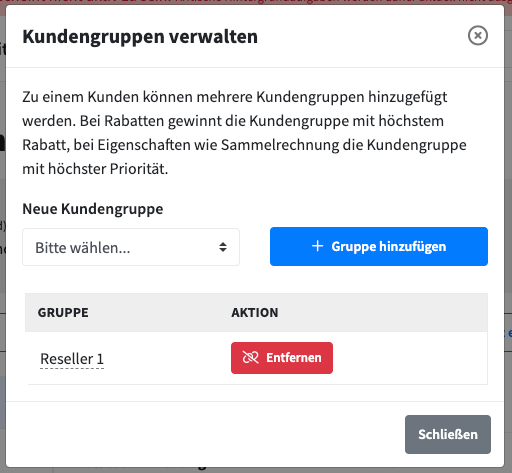
Assign customers manually
Manual assignment is the usual way for individual customers, for example resellers.
Open the customer and stay on the General (Allgemein) tab.
Next to Customer groups, click Adjust (Anpassen).
Pick the group and click Add group (Gruppe hinzufügen).
If the group has a collective invoice profile, the customer switches to collective invoicing. Products can also assign a group when they are ordered. The customer leaves that group again once the last hosting that carries it is deleted.
Assign customers automatically by revenue
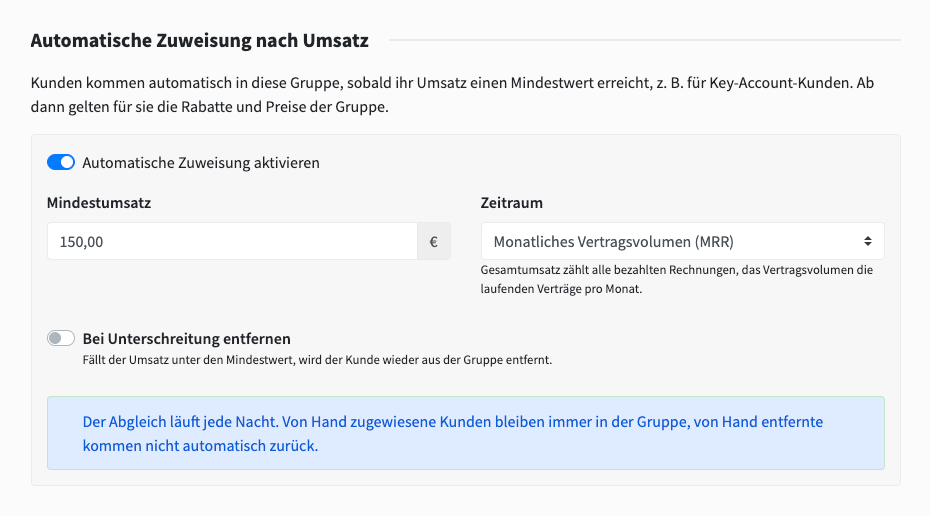
Customers join the group as soon as their revenue reaches a minimum, for example to reward key accounts. This option is not available for groups with a collective invoice profile.
Minimum revenue: the threshold in euros. Customers at or above it are added.
Period: Total revenue counts all paid invoices without credit notes and cancellations. Monthly contract volume counts the active contracts per month, the same figure shown on the customer page. Both add up all sales channels.
Remove when below: removes automatically added customers once their revenue drops under the minimum.
We run the sync every night at 00:25. To run it right away, click Sync customers now (Kunden jetzt abgleichen) in the customer group overview. You get a notification for every change, or a summary when there are ten or more.
Customers you added by hand always stay in the group. Customers you removed by hand stay out, even when their revenue qualifies, until you add them by hand again.
The sync only changes group membership. It never switches a customer's invoicing, but the group's discounts and prices apply from the moment a customer is added.
Delete a customer group
Deleting a group removes it from all its customers, together with its discounts and commissions. Those customers fall back to the standard prices and keep any other groups they belong to.