
Payment methods
Hostware ships no built-in payment methods. Every method comes from a payment module, such as HwStripe, HwMollie, HwPayPal, HwGoCardless, HwSepaPayment, HwQonto, HwCryptomus or HwPayByInvoice. Installing a module makes its methods available; new methods start switched off. Uninstalling a module removes its methods.
Switch methods on and off
Each method is switched on or off separately per sales channel.
Activate the module for the sales channel on the Modules page. A method can only be switched on while its module is active for that channel. Switching off always works.
Go to Settings → Payment methods and set the switch per sales channel. Activating a module turns on its default methods (Stripe: credit card and Giropay; single-method modules: their one method). Deactivating a module turns all of its methods off.
Set the checkout order by drag and drop in the Order pop-up.
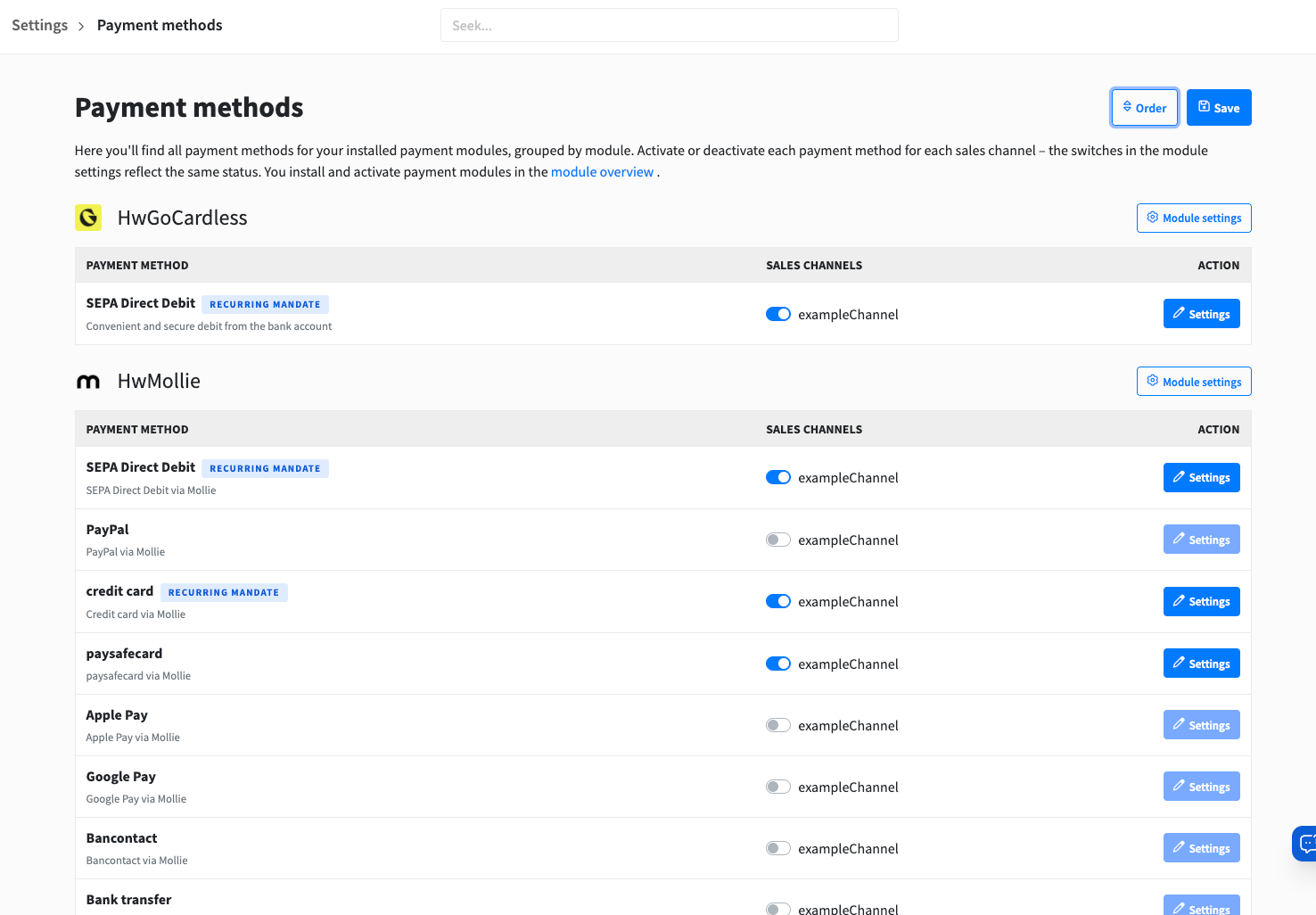
The Stripe, Mollie and PayPal module settings keep their own payment methods tab. Those switches control the same per-channel on/off state.
Every change is logged with the admin and the sales channel, and the storefront picks it up right away.
Settings per payment method
The Settings button on a method is available once the method is switched on. It holds:
Name and description shown to customers (German and English).
Restrictions: minimum and maximum amount, minimum revenue and minimum number of paid invoices before the method appears, business customers only, and whether to hide the method when unavailable or show it greyed out with the reason.
Fees: a percentage plus a fixed amount, charged above a free threshold. The fee is added to the payment.
Mandate settings: "wait for payment before releasing the order", a chargeback fee, and whether chargebacks are charged to the customer automatically.
On the customer page, a method can be marked as always allowed, which lets it skip every restriction for that customer.
What customers see
For the current channel, the storefront shows the switched-on methods, filtered by restrictions. Pay by invoice is offered only at checkout and balance top-up.
At checkout, customers pay by a one-off payment method, a stored mandate, account balance, or collective invoice. Paying by mandate needs an active mandate or one waiting for approval.
Orders go live after payment unless a "wait for payment" rule holds them back. The rules are:
the pay-by-invoice configuration
the mandate setting
the customer's own flag
the payment-based order workflow, where the invoice only gets its number once paid
Paying an open invoice creates a payment, fee included, and sends the customer to the provider. Offline methods show a message instead. Payment methods are also used in balance top-ups, changing a service's billing, and setting up a mandate.
Mandates (recurring payments)
Customers create a mandate through the provider's form. It becomes active, or waits for admin approval; the sidebar shows a badge while any are waiting.
Due invoices are charged automatically against active mandates. A failed charge marks the mandate declined and reopens the invoice.
Payments and chargebacks
When a customer pays, the invoice and payment statuses are updated automatically. A paid invoice runs the usual paid actions, such as activating orders and unlocking services.
Disputes and chargebacks go to Billing → Chargebacks. There they are charged automatically or reviewed by an admin, depending on the method's setting.
Troubleshooting
The system status check warns when no payment method is enabled anywhere. If a method does not appear at checkout, check that its module is active for the sales channel and that the method is switched on there.